


Install LibreOffice Snap

Our
Story
LibreOffice Snap
This page, and the video on it, explains how to install the Snap-packaged versions of LibreOffice. The latest versions of the LibreOffice suite can be installed directly from the Snap Store.
Ubuntu and its derivatives (Kubuntu, Xubuntu, Lubuntu, etc.) come with Snapd and the Snap Store preinstalled. It also comes preinstalled on Zorin OS.
The Snap Store can be installed on any Linux operating system (operating systems are also called distros).
-
Click here to learn how to install it on several popular distros.
Install with Ubuntu Software
The Ubuntu Software app in includes snaps, along with apps packaged in other ways, such as DEB. The app store, which is available to Ubuntu 22.04 and earlier versions of 24.04, contains the latest versions of LibreOffice, packaged as snaps, and older versions of LibreOffice, such as those that are packaged as a DEB, together in the same store. Newer versions of Ubuntu (updated 24.04 and later) may only have a Snap Store, which only has snaps. The newer and non-Ubuntu section below has instructions for the newer software store.

1. Launch the Ubuntu Software app
This is typically found in Ubuntu's dock. Click the app to launch it. It also may be found in the software list when the nine-square icon is clicked (24.04 Ubuntu logo icon).
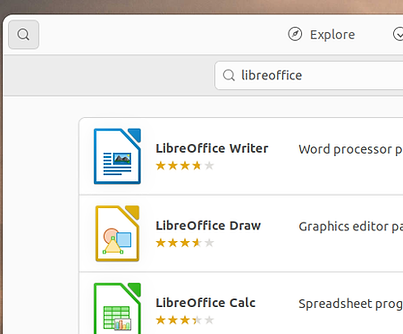
2. Search for LibreOffice
Click the search icon in the top, left of the Ubuntu Software app. Then type "libreoffice" in the field that appears. Results will start to appear in the list below the search field.

3. Click the white LibreOffice icon
Clicking the white LibreOffice icon to enter the page for it. This choice contains the entire suite, StartCenter and six apps. The other choices in the list are individual applications.

4. Click the drop-down menu
Click the Snap Store drop-down menu in the top, right of the window.
It contains the latest version of LibreOffice and the second latest version. The second latest version is the default choice.
If desired, click the the latest, also called the candidate, version to select it. The drop-down menu will disappear. Otherwise, click the main part of the app window to keep the stable version as the choice that will be installed.

5. Click the Install button
When the Install button is clicked, the installation starts.
A dialog will appear asking the user to type the administrator password in order to continue.
The installation will take a few minutes to complete. There is no need to restart the computer. The StartCenter and the six applications will appear in the software list. They will be at the end of the list.

6. Delete older version (or keep it)
Snap applications do not require dependencies from the installed version of Ubuntu.
One effect of this is that several versions of LibreOffice can run at the same time. The preinstalled apps can run with the snap apps.
The preinstalled LibreOffice apps can be removed through the Ubuntu Software application. The applications need to be removed individually. The entire suite cannot be removed together, like the snap version.
Install on newer and non-Ubuntu distros
The App Center, also known as Snap Store, contains only applications packaged with snap. Newer versions of Ubuntu (24.04 and later) come with it, and this is what will be installed on non-Ubuntu distros. The following instructions demonstrate how to install the snap versions of LibreOffice through the Snap Sore that does not contain other forms of LibreOffice.
The instructions are similar to the above ones, for the software store that integrates snaps with other types of apps.

1. Launch the AppCenter
This is typically found in the Linux distro's software list. Click the app to launch it. This is a separate app from the software repository app that came with the distro.
The image above is taken from Fedora with Gnome. Somel other distros will have a list similar to Windows, rather than one like this.
It is referred to as the Snap Store, but the icon for it will be called the App Center on any distro that it is installed on.
To install snap and the Snap Store on a distro other than Ubuntu, visit this Web page.
OS-College also has videos and written instructions for installing the snap system on Linux Mint, Manjaro, and Fedora.

2. Search for LibreOffice
Type "libreoffice" in the field at the top, center of the App Center. The list of apps will appear in a menu that is on top of the main window. Click "libreoffice" in the menu.
Unlike in Ubuntu 22.04 and its derivatives, in other distros the snaps in the Snap Store are not integrated with apps packaged other ways.
This is why the Snap Store only has one version of LibreOffice and users do not see any options to install individual applications.
To uninstall older preinstalled LibreOffice versions, users will need to go to the other software repository for the distro.
Installing the Snap Store on a distro other than Ubuntu gives the user two software stores.

3. Click the menu and install
Clicking "libreoffice" in the menu takes users to the page for LibreOffice snap.
Click the Snap Store drop-down menu in the top, right of the window.
It contains the latest version of LibreOffice and the second latest version. The second latest version is the default choice.
Click the the latest, also called the candidate, version to select it. The drop-down menu will disappear.
If the stable version is desired, click the main part of the window. The menu will disappear and the stable version will remain the choice.
Click the Install button to start the installation process. A dialog will appear requesting the administrative password to be entered. The installation won't complete without it.
Install from the Terminal
LibreOffice also can be installed by entering the following command in the Terminal app:
-
sudo snap install libreoffice
This will install the stable version. The latest version, also known as the "candidate" version can be installed by entering the following command into the Terminal:
-
sudo snap install libreoffice --candidate
Here are the steps:
-
Type in one of the above commands.
-
Press Enter or Return on the keyboard.
-
On the next line, type the administrator password and press Enter or Return.
This will start the installation process.
Install LibreOffice Snap video
The video demonstrates installing the latest two versions of LibreOffice, packaged as snaps, on Ubuntu 22.04. It shows how to do it through the Ubuntu Software application and with the command line through the Terminal application.
The tutorial can be followed with the newer version of the Snap Store. However, some of the steps may be different.
